

Set Access and Configuration
Next, define your repository’s access settings:- Private repository – Only you and authorized collaborators can access it.
- Public repository – Anyone can view and contribute.
- .gitignore template – Defines which files to exclude from version control (such as API keys or secrets). The template varies depending on your project’s language.
Previews
Previews are now live you can preview your code in the Preview Tab to check it out.Move to the Main Dashboard
After setup, you’ll be redirected to the Task Assignment view.Here, you can create your first task, give it a clear name, and start building your project with Compyle. You’ll also see an option called Skip Research:
- Enabling this tells the model not to analyze your existing code, and to focus only on the new task.
- This is useful when starting from scratch with an empty repository.
- However, if your project already contains code, skipping research can reduce accuracy — since the model won’t understand your current structure or dependencies.
When creating a task, write a detailed description of what you want to build.
This helps the model understand your intent and generate more precise results.
This helps the model understand your intent and generate more precise results.
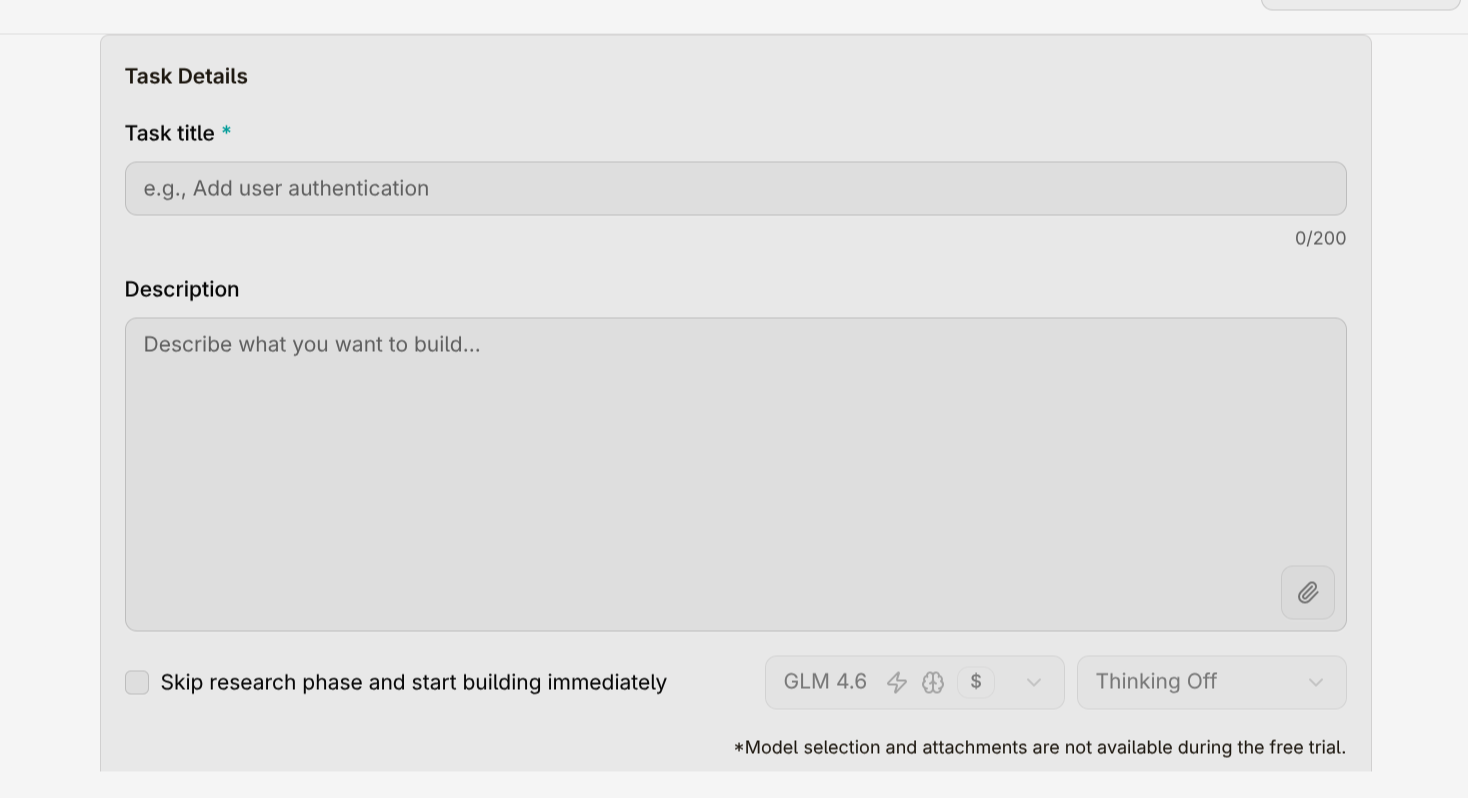
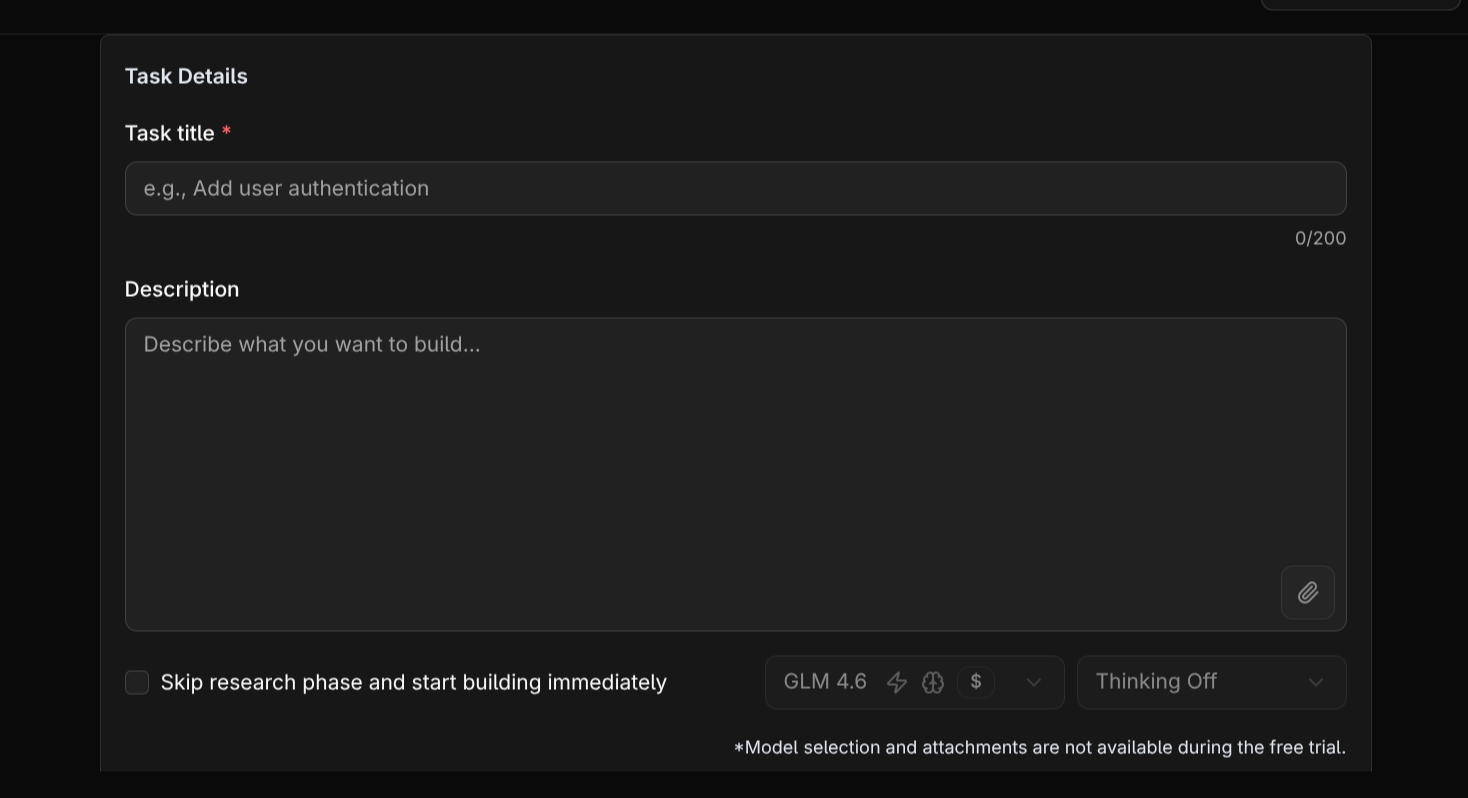
Creating a New Task in Compyle
Model Selection
You can choose the model you want to work with based on your plan:- Free Plan: Access to GLM 4.6, ideal for general tasks.
- Pro and Pro+ Plans: Unlock access to advanced models for higher performance and faster responses.