

Overview
When your Compyle generated project includes features such as authentication, forms, or file uploads, it requires a backend to handle data securely. Compyle automatically generates the backend logic and structure you need.However, for now, you’ll still need to host and manage your backend manually.
We’re actively working on integrated backend hosting and one-click deployment within Compyle.
Until that’s released, this guide will walk you through deploying your website using Supabase and Vercel.
Until that’s released, this guide will walk you through deploying your website using Supabase and Vercel.
Why Supabase?
We recommend Supabase as the backend platform for your projects. It’s fast to set up, integrates smoothly with Next.js, and provides all the essentials out of the box:- Authentication (Email, Google, GitHub, and more)
- A fully managed PostgreSQL database
- Real-time APIs
- File storage
- Tight compatibility with Compyle-generated project
Supabase takes care of most backend complexity — what would normally take weeks can now be done in minutes.
Setting Up Supabase
- Go to supabase.com.
- Sign in with your GitHub account.
- Click New Project.
- Choose a project name, region, and database password.
- Once created, open your Supabase Dashboard.
Get Your API Keys
Inside your Supabase dashboard:- Open your project.
- Click the Connect button at the top of the page.


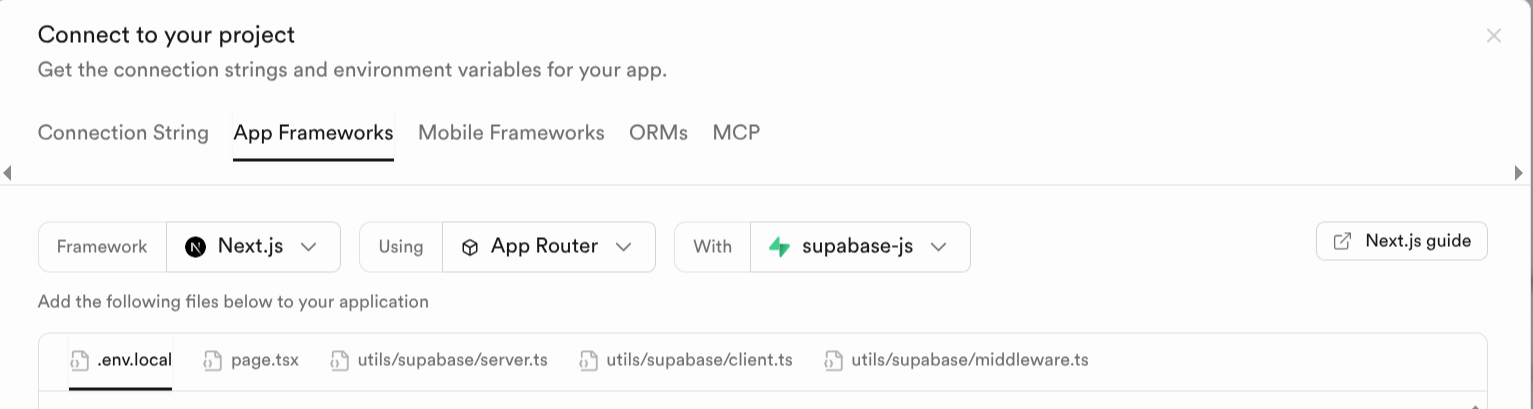
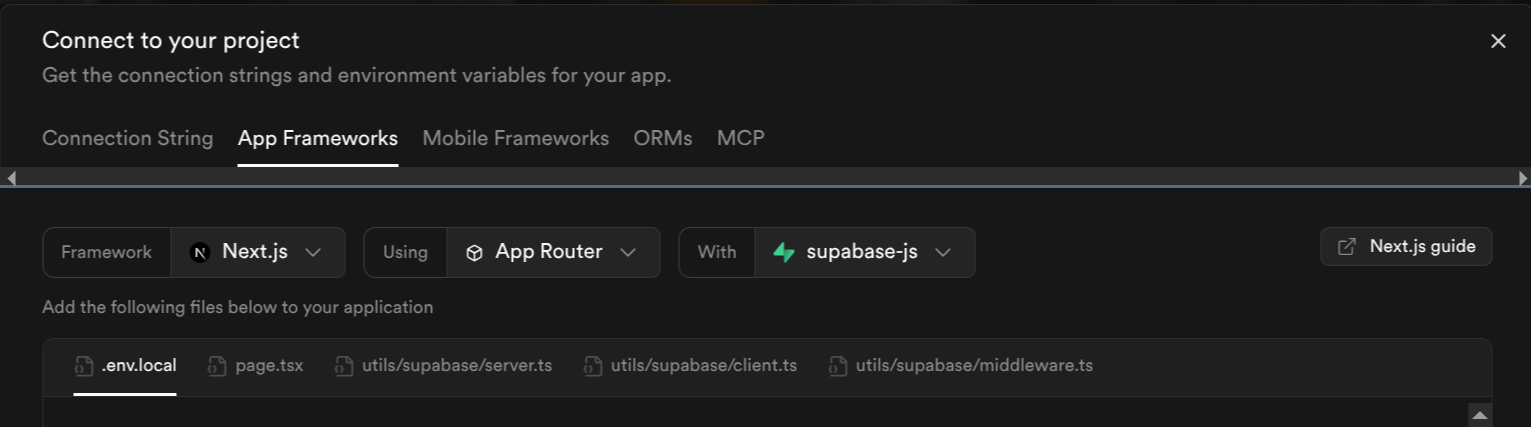
Configure Your Database
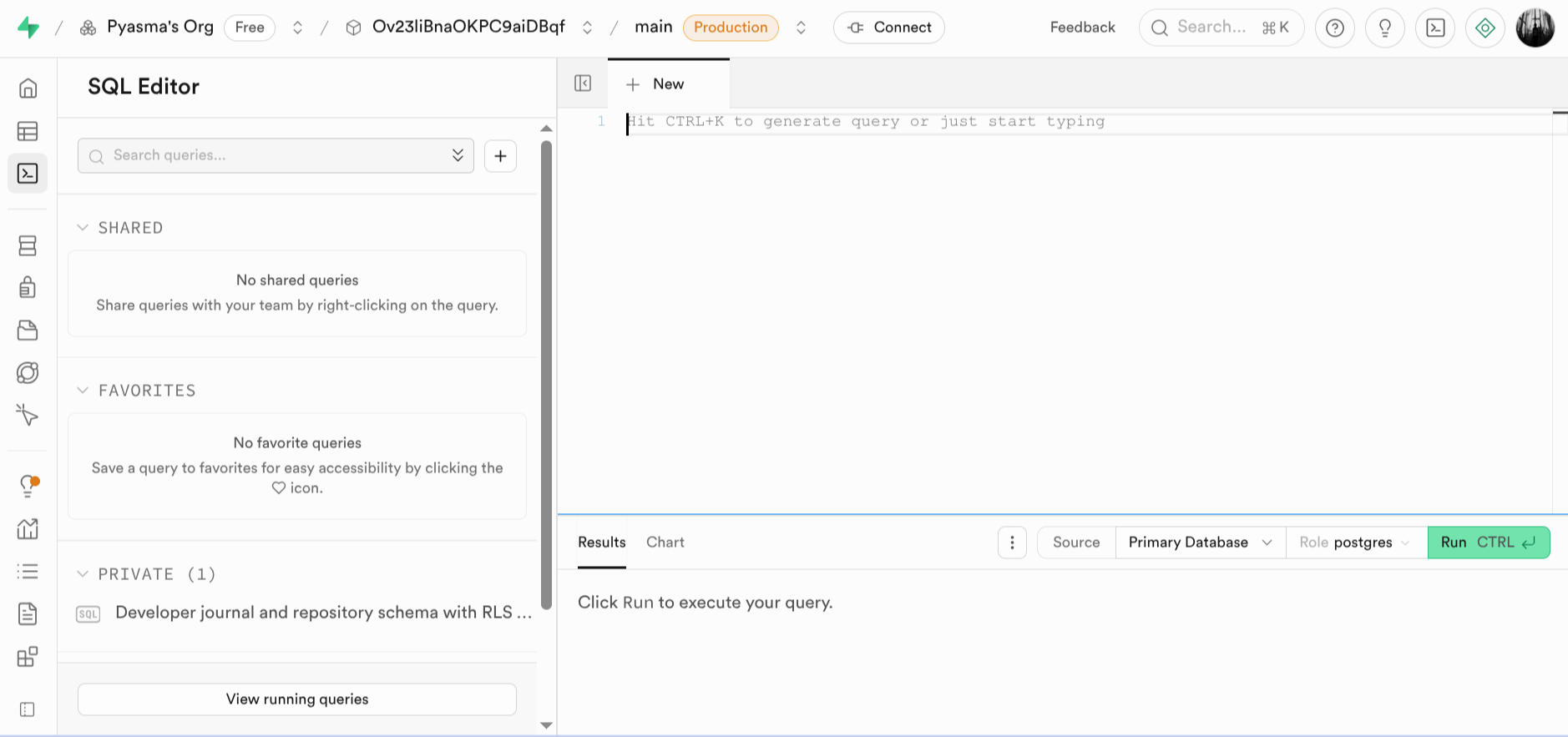
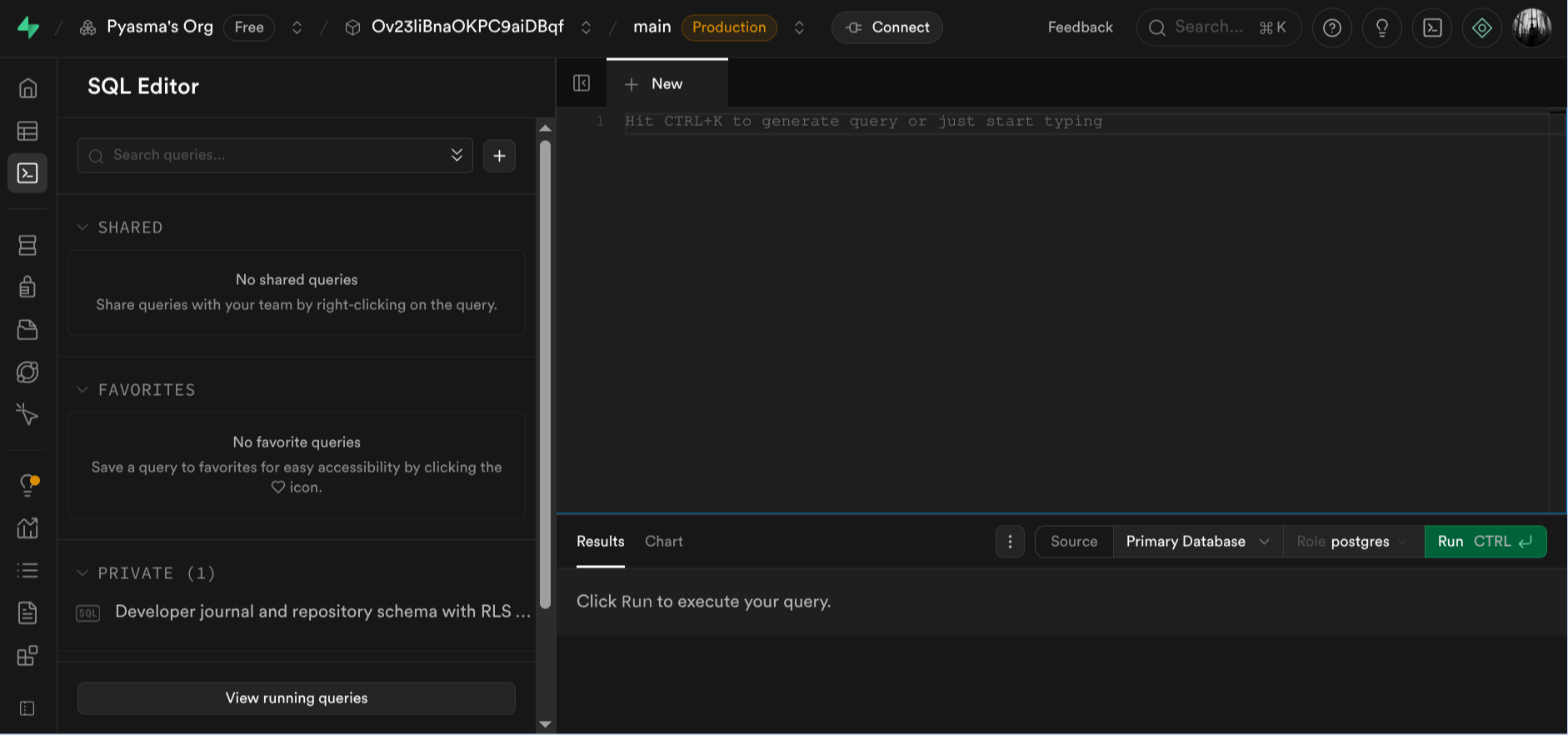
If your compyle generated project collects user data (for example, login details, form responses, or uploaded files), you’ll need to create the database tables that your project expects.- Open your Supabase project.
- Go to the SQL Editor in the sidebar.
- In your project folder, locate the SQL files that define your database structure.
- Copy each SQL file’s contents into the Supabase SQL Editor.
- Click Run to execute each file.
Running Your Project
You can run your project in two ways:- Locally – ideal if you’re comfortable managing environment variables and local servers.
- Deployed – through a hosting service like Vercel.
Use the Supabase keys you copied earlier when setting up Vercel Environment Variables during deployment.
Deploying with Vercel
Step 1 — Connect to Vercel
- Go to vercel.com.
- Log in with your GitHub account.
- Click Add Project.


- Select the repository generated by Compyle.
Step 2 — Add Environment Variables
Before deploying, open the Environment Variables tab.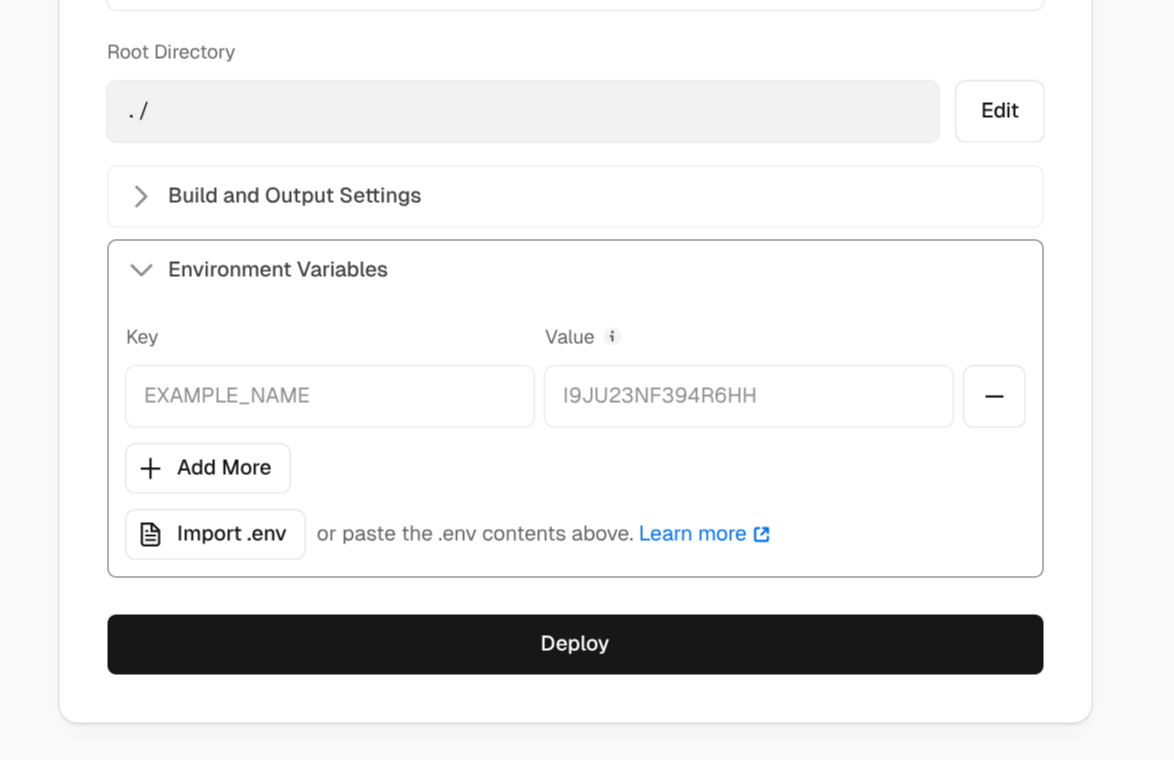
After Deployment
Your deployed app is now live — fully connected to Supabase. It will:- Handle user authentication
- Store and retrieve data securely
- Manage file uploads
- Run frontend and backend logic seamlessly
That’s it! Compyle writes the code, Supabase powers the backend, and Vercel deploys your full-stack app — all in just a few steps.