> ## Documentation Index
> Fetch the complete documentation index at: https://docs.compyle.ai/llms.txt
> Use this file to discover all available pages before exploring further.
# GitHub
Compyle seamlessly integrates with **GitHub**, allowing you to manage your project with standard Git workflows: **branches**, **commits**, and **pull requests**.
***
## How it Works
Compyle treats every **task** as a dedicated **pull request (PR)** within your **repository**. This ensures that all AI-generated changes are traceable, isolated, and easy to review before merging.
Flexible Collaboration
You can collaborate directly via the standard Git interface—manually pushing commits, creating branches, or managing PRs alongside the agent.
***
## Setup
GitHub is the heartbeat of Compyle. Since every task operates directly on a repository, a GitHub connection is mandatory to use the platform.
When you first log in to Compyle, you will be prompted to connect your GitHub account. This ensures your workspace is ready for development from day one.
Authorize and install the **Compyle GitHub App** on your personal account or organization.
Create your first project and select the repositories you want the agent to work on, or create new repositories directly through Compyle.
Mandatory Connection
Compyle cannot function without a connected GitHub account, as it uses standard Git workflows to manage all code changes.
***
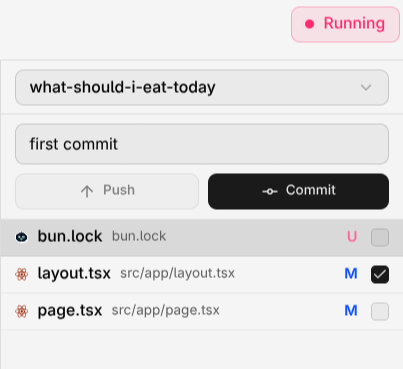
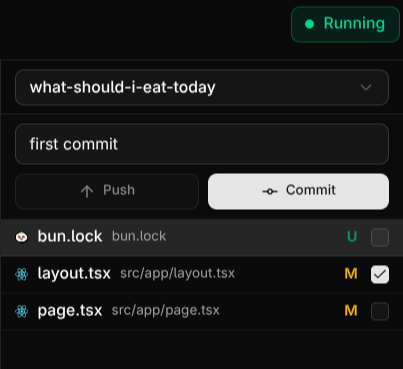
## Committing Changes
You can save your progress at any time directly from the editor:
1. Open the **Git** tab.
2. **Stage** the files you want to include.
3. Enter a descriptive **commit message**.
4. **Push** to sync your changes to the remote branch.
***
## Pull Requests
Manage your integration workflow directly from Compyle:
* **Sync**: Pull the latest changes from your remote repository.
* **Push**: Upload your local commits to your feature branch.
* **PR**: Open a Pull Request for code review and merging.
This structured workflow keeps your main branch clean and your project history organized.
***
## Managing Repositories
In Compyle, repository management is handled at the project level.
* **Project-Specific Repos**: Select a target repository whenever you create a new project. Compyle will then handle all tasks as PRs or branches within that specific repo.
* **Permissions**: You can update repository access at any time through the **Integrations** tab in **Organization Settings** or directly via your GitHub App settings.
* **Disconnecting**: To remove access, navigate to **Integrations** and click **Disconnect**. You should also uninstall the Compyle App from your GitHub account if you wish to revoke all tokens.
New to Git? Check out our beginner's guide to GitHub concepts.
 ***
## Pull Requests
Manage your integration workflow directly from Compyle:
* **Sync**: Pull the latest changes from your remote repository.
* **Push**: Upload your local commits to your feature branch.
* **PR**: Open a Pull Request for code review and merging.
This structured workflow keeps your main branch clean and your project history organized.
***
## Managing Repositories
In Compyle, repository management is handled at the project level.
* **Project-Specific Repos**: Select a target repository whenever you create a new project. Compyle will then handle all tasks as PRs or branches within that specific repo.
* **Permissions**: You can update repository access at any time through the **Integrations** tab in **Organization Settings** or directly via your GitHub App settings.
* **Disconnecting**: To remove access, navigate to **Integrations** and click **Disconnect**. You should also uninstall the Compyle App from your GitHub account if you wish to revoke all tokens.
***
## Pull Requests
Manage your integration workflow directly from Compyle:
* **Sync**: Pull the latest changes from your remote repository.
* **Push**: Upload your local commits to your feature branch.
* **PR**: Open a Pull Request for code review and merging.
This structured workflow keeps your main branch clean and your project history organized.
***
## Managing Repositories
In Compyle, repository management is handled at the project level.
* **Project-Specific Repos**: Select a target repository whenever you create a new project. Compyle will then handle all tasks as PRs or branches within that specific repo.
* **Permissions**: You can update repository access at any time through the **Integrations** tab in **Organization Settings** or directly via your GitHub App settings.
* **Disconnecting**: To remove access, navigate to **Integrations** and click **Disconnect**. You should also uninstall the Compyle App from your GitHub account if you wish to revoke all tokens.